When most people think about PrusaSlicer, they think about layer heights, supports, filament profiles, and getting a print ready for the printer. What many users never realize is that PrusaSlicer has an entire ecosystem hidden behind the scenes that stores years of tuning, customizations, backups, and printer knowledge. On macOS, understanding this configuration folder can mean the difference between recovering from a failed update in minutes or spending an entire weekend rebuilding profiles from scratch. Recently I spent some time digging through the current PrusaSlicer configuration structure on macOS and discovered that several folders are far more important than most users realize. Let’s take a tour through the eight areas every PrusaSlicer user should understand.
~/Library/Application Support/PrusaSlicer
The easiest way to access it is:
PrusaSlicer → Help → Show Configuration Folder
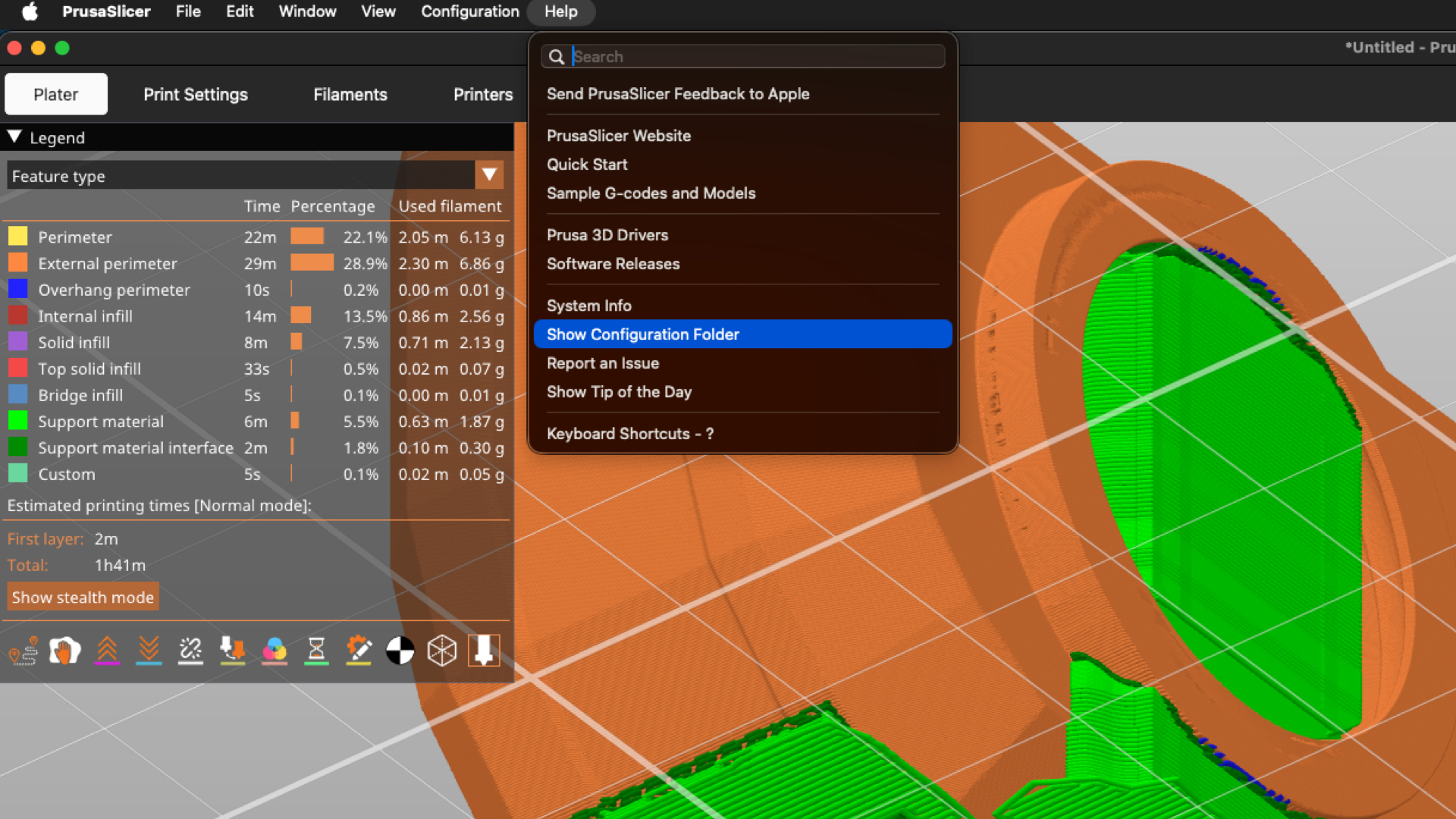
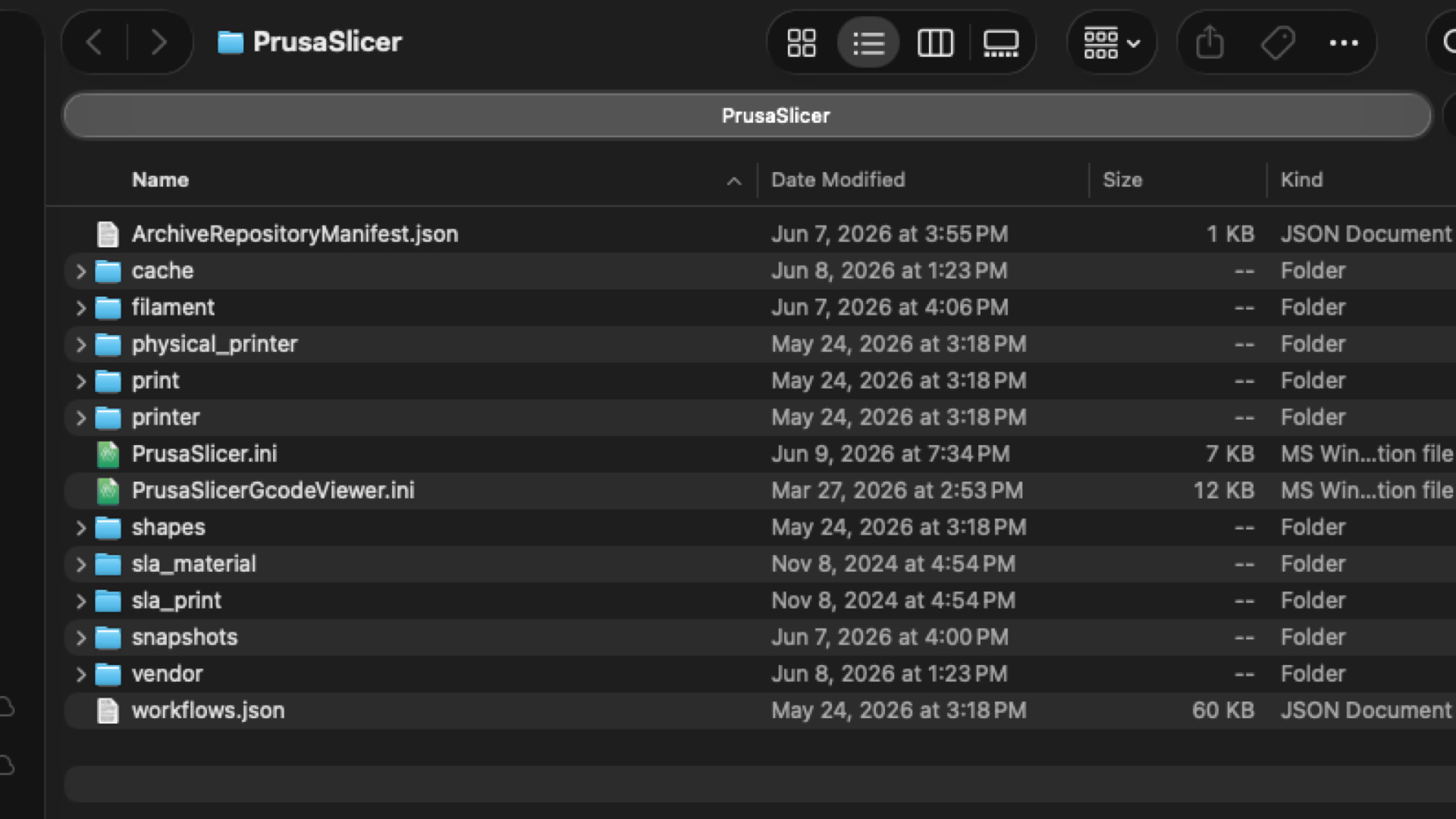
If you move to a new computer and copy only this folder, there’s a good chance your new installation will feel almost identical to the old one. Inside you’ll find printer profiles, filament presets, print settings, vendor bundles, backups, snapshots, and user preferences.
Every printer you add to PrusaSlicer has a profile.
These profiles contain information such as:
At first glance these settings seem simple. In reality, they often represent dozens of hours of experimentation. If you’ve spent months perfecting your MK4S, MINI+, XL, Voron, or custom printer, this is where much of that work lives. These printers are those ones you are currently fiddling with, though may not necessarily be the machines set as a print-direct-to units. Those are later.
When someone says:
“I lost all my printer settings after reinstalling.”
This is usually one of the folders involved.
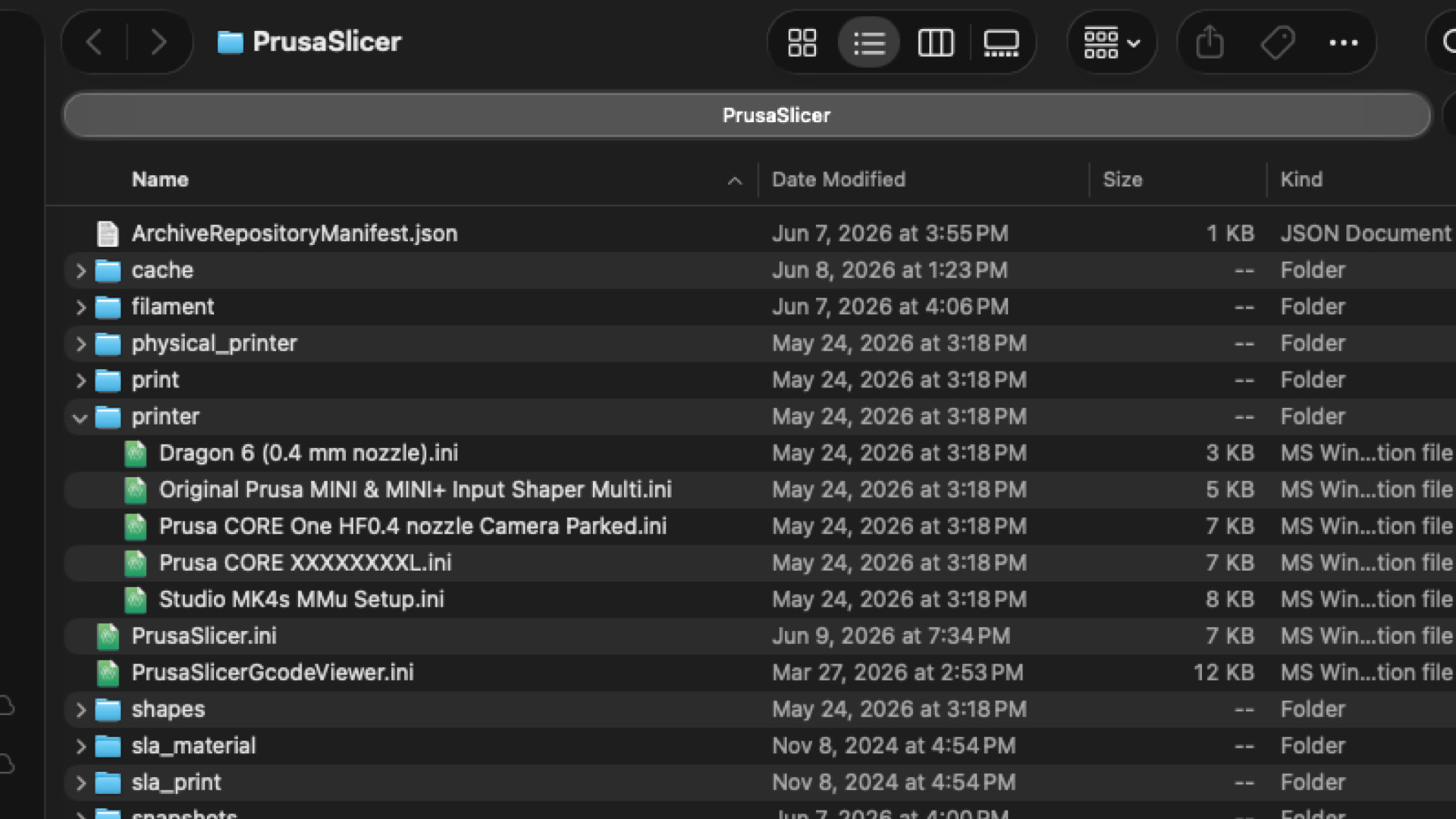
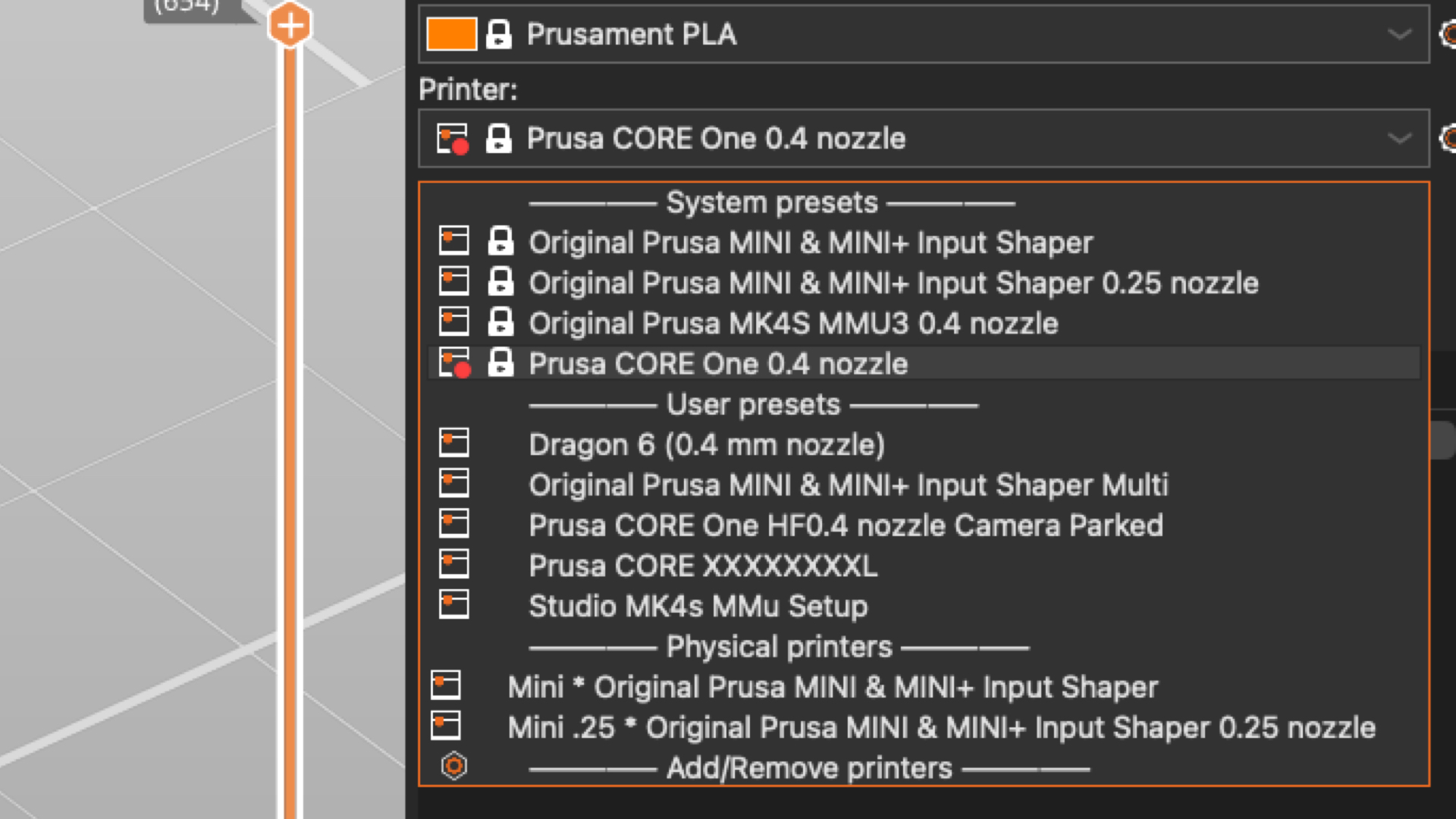
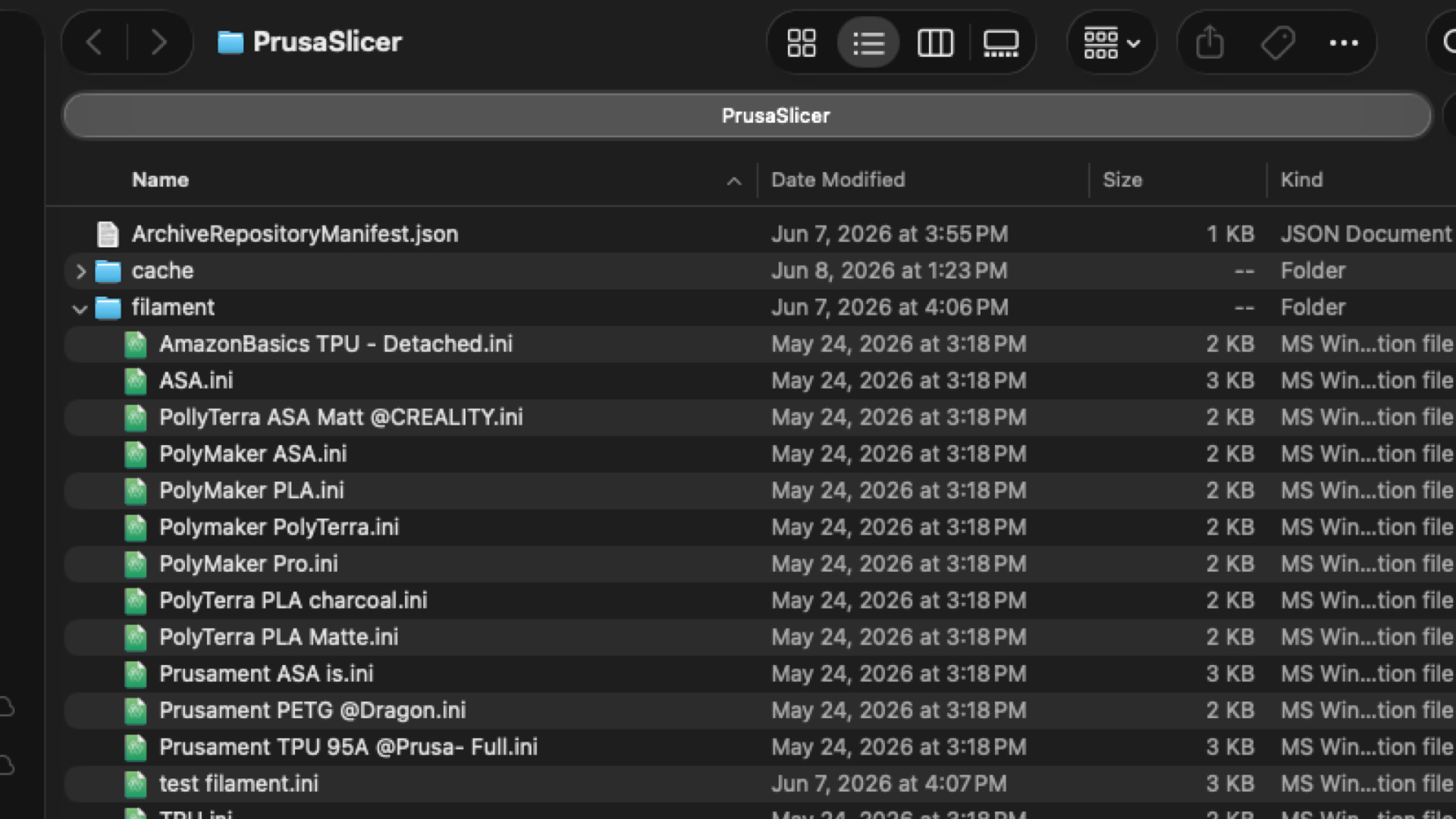
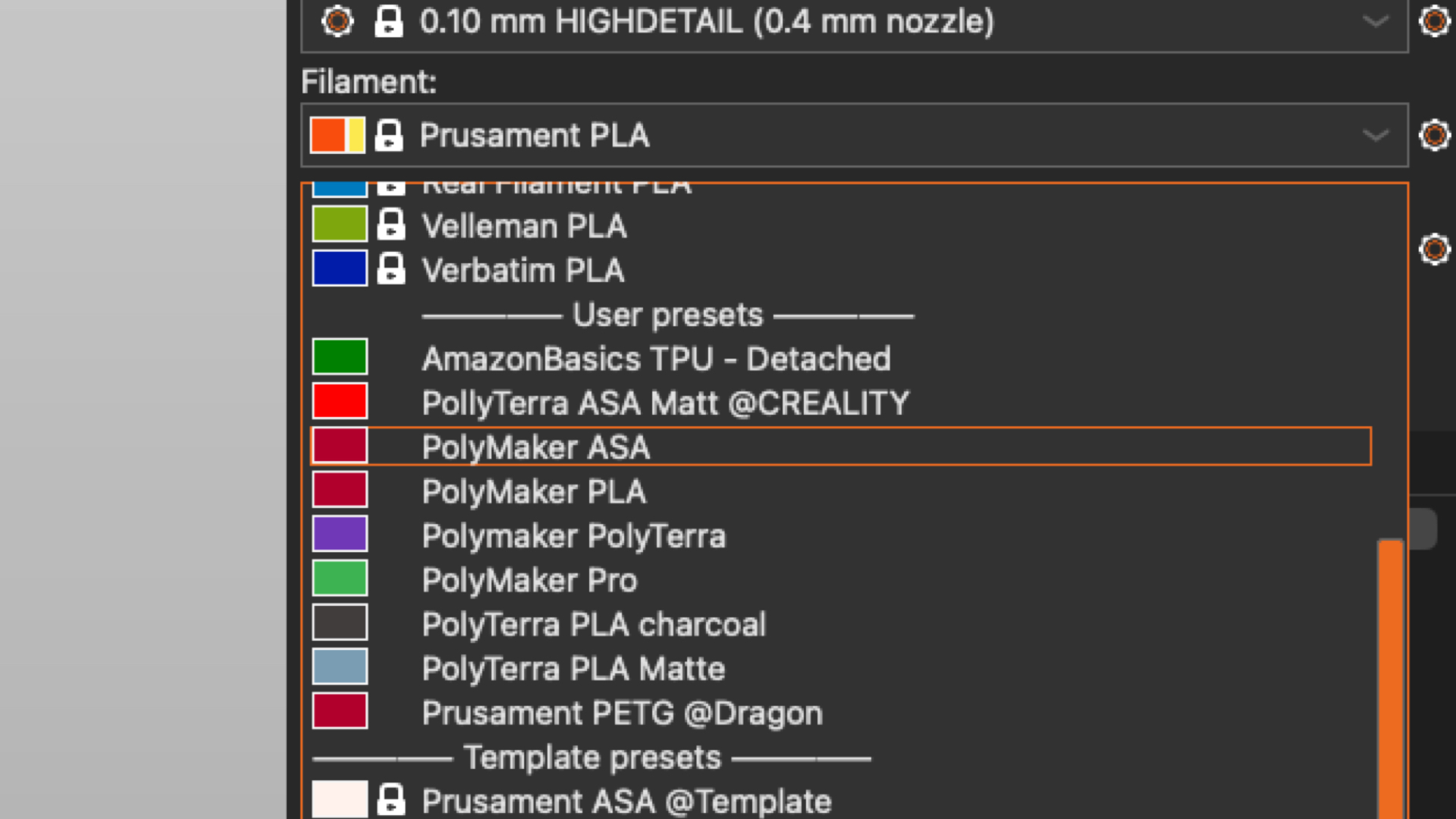
Printers” setting and saved the file thereafter, the files stored in this folder hold those custom values. Many users spend more time tuning filament than they do tuning printers.
Filament profiles store:
Over time you may build separate profiles for:
A custom PETG profile that prints perfectly today may represent dozens of failed test prints from six months ago. Losing these settings can be frustrating. Understanding where they live makes recovery significantly easier.
This is where slicing behavior is stored.
These profiles determine things like:
Many experienced users develop custom print settings for specific purposes.
For example:
This folder often contains the true “secret sauce” behind consistently good prints.
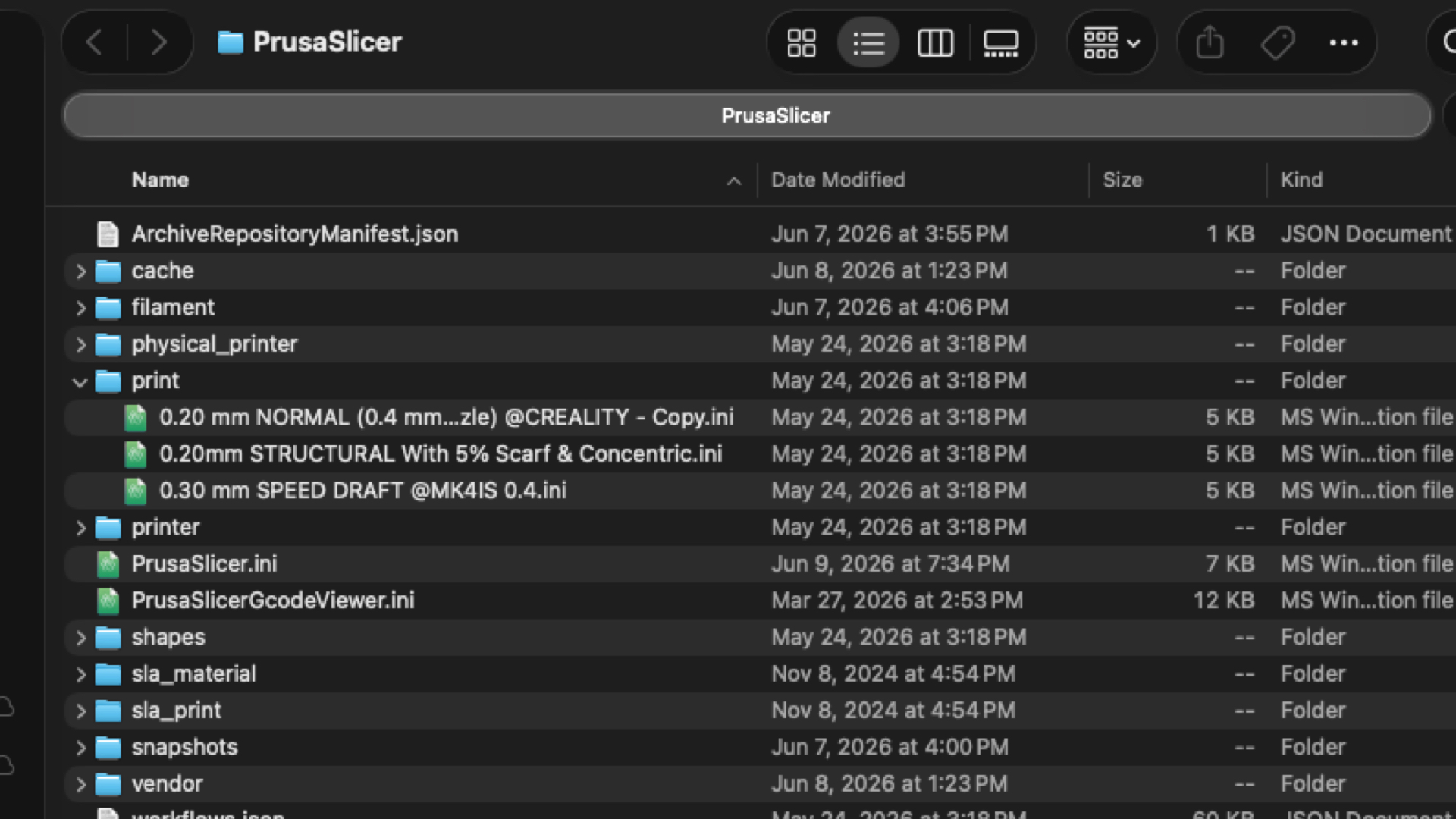
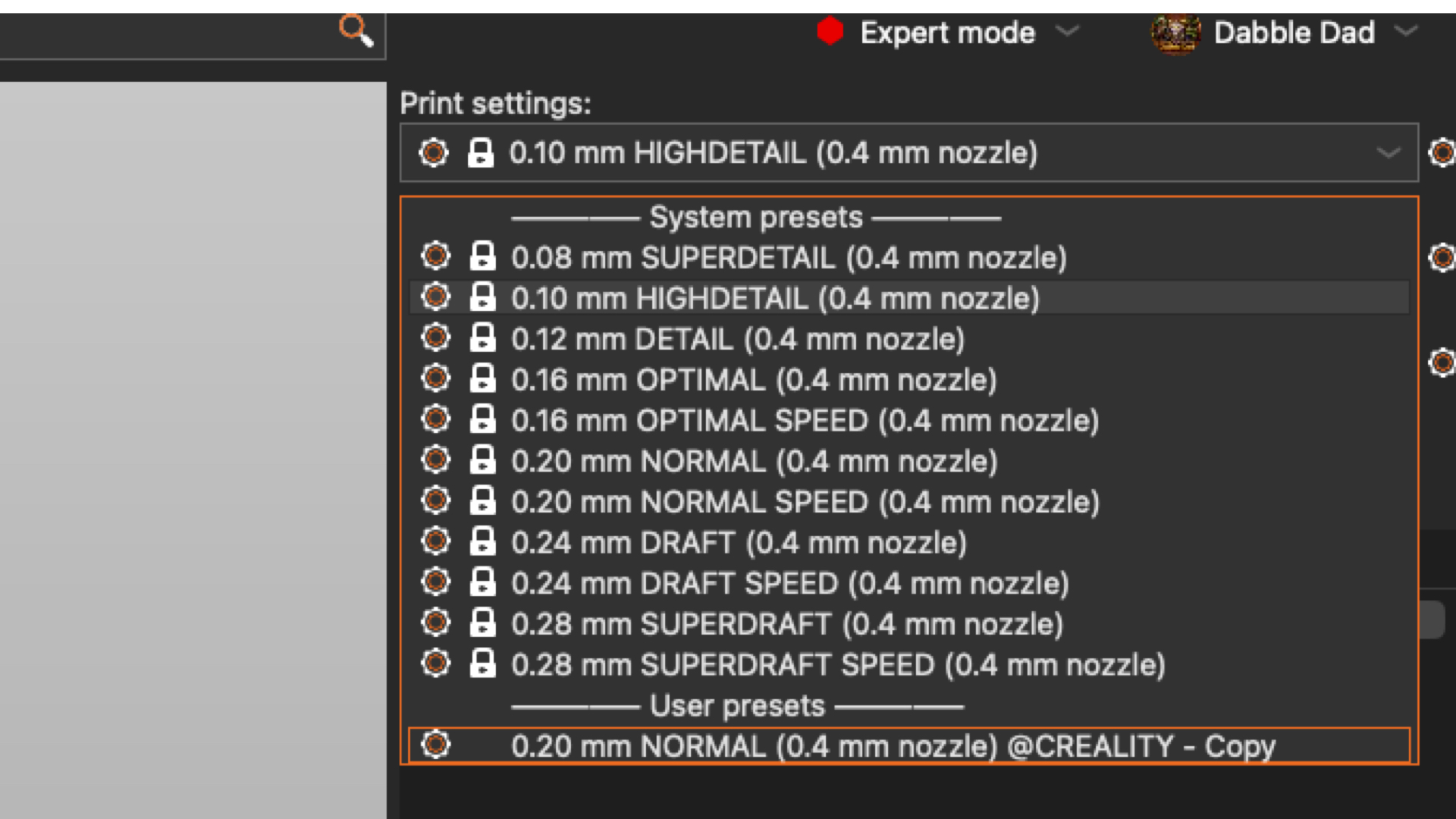
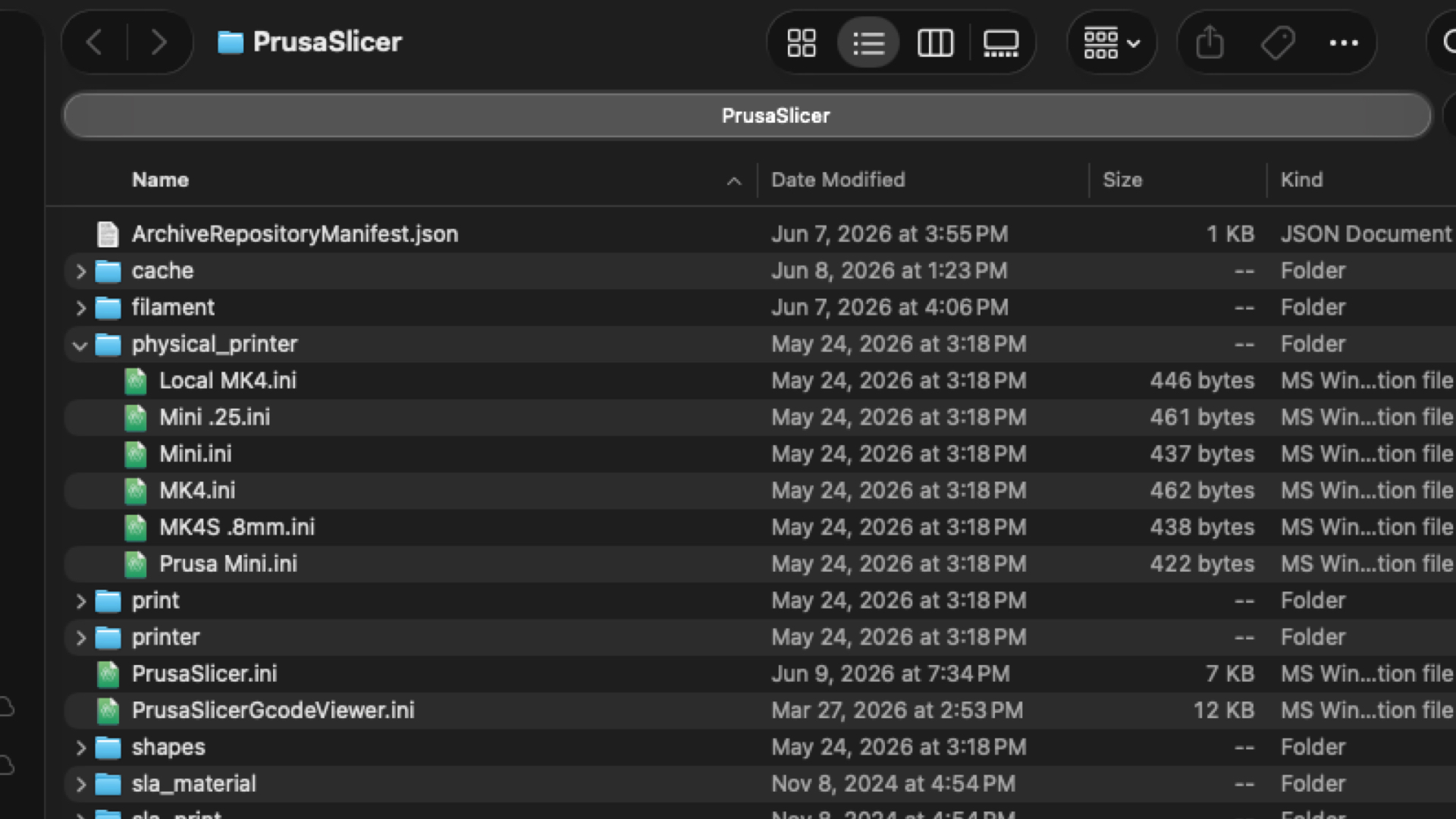
Print” settings and saved the file thereafter, the files are stored in this folder hold those custom values. One area many users overlook is the distinction between printer profiles and physical printers. A printer profile describes what the machine is and what are the physical locations to where your file goes.
This becomes useful when you own multiple printers, have custom builds, manage a print farm, or have network-connected printers. PrusaSlicer can store network information and printer associations separately from the printer profile itself. This allows multiple machines to share similar profiles while still being uniquely identified for the physical locations.
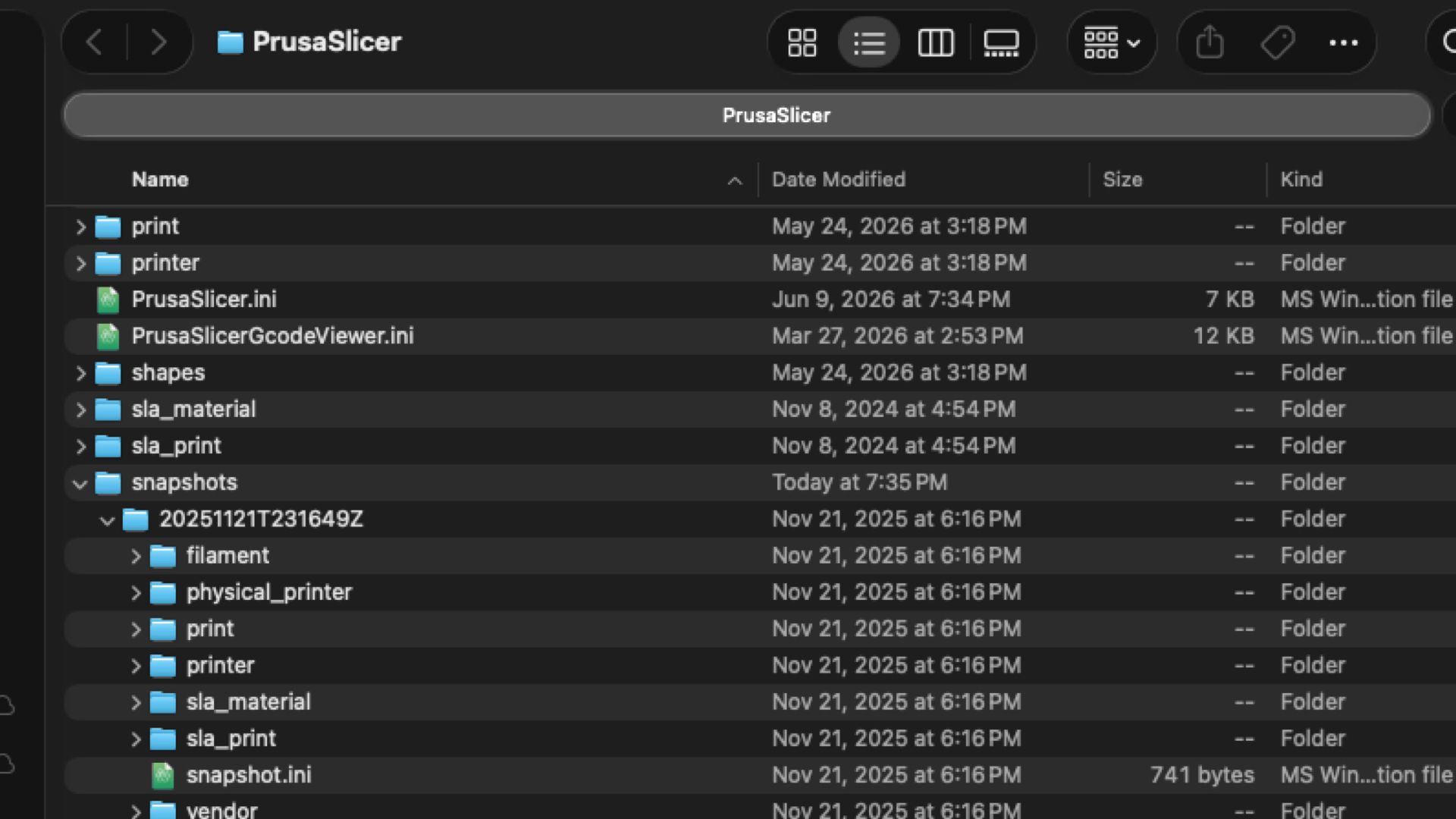
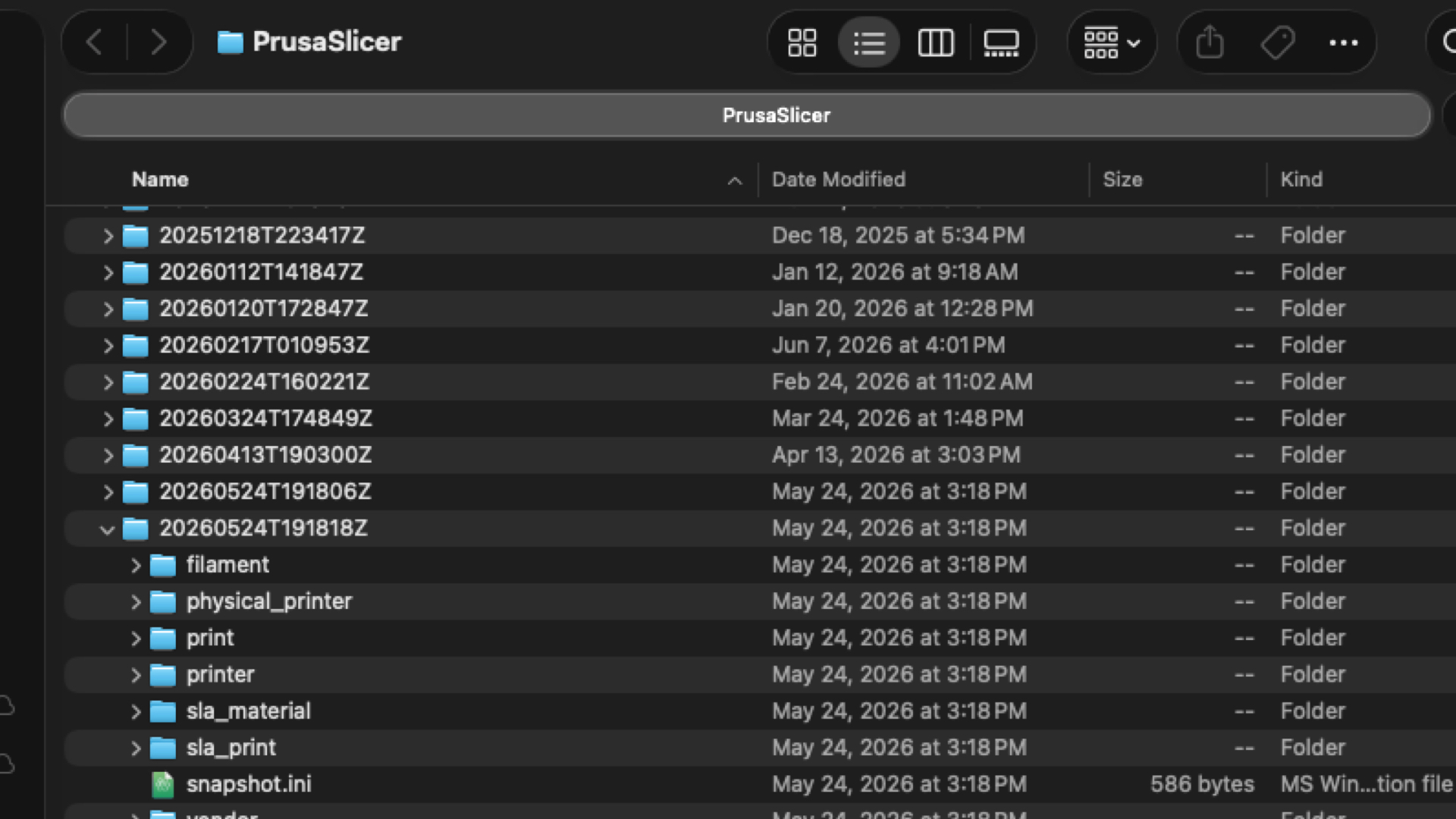
This may be the most valuable folder in the entire configuration directory. The snapshots folder stores automatic backups created by PrusaSlicer before major configuration changes. Most users don’t even know it exists.
Imagine this situation:
That single folder can save you hours of “RE”-work.
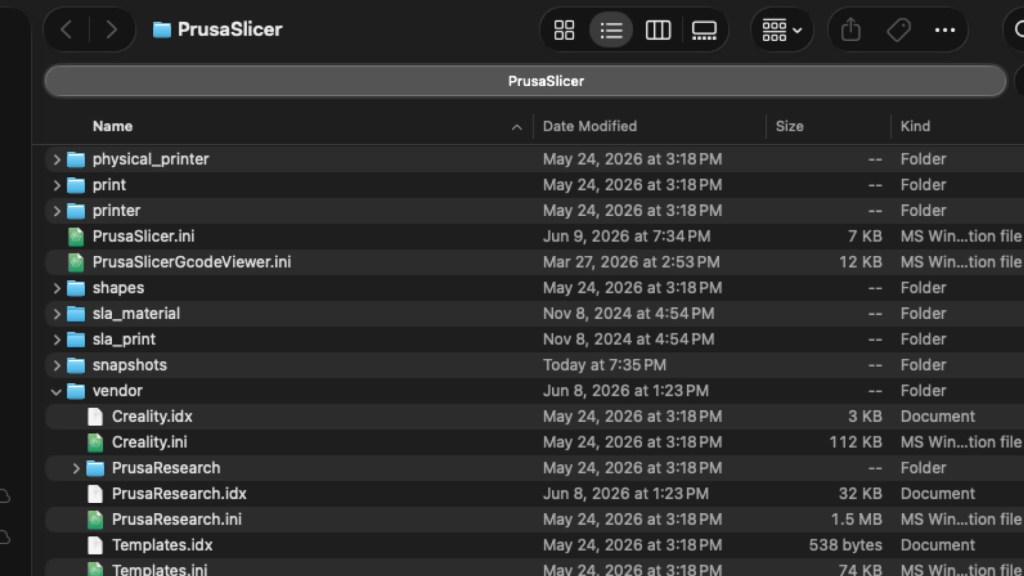
Have you ever updated PrusaSlicer and suddenly discovered new printers available in the setup wizard? Vendor bundles are responsible for that. These bundles contain manufacturer-supplied configurations. These limitations do not take into account all the upgrades you have done to the printer since building it.
Examples include:
Vendor bundles provide:
All without requiring users to create them manually. These files are one reason PrusaSlicer supports such a large number of printers.
The final piece of the puzzle is understanding exports. PrusaSlicer allows users to export; Individual configurations, configuration bundles, and complete project files. These exports make it possible to move to a new computer, share settings with friends, archive profiles, and create version-controlled backups.
The configuration folder isn’t the glamorous side of 3D printing. It doesn’t improve print quality directly. It doesn’t make your printer faster. But it protects something far more valuable…Your experience.
Every filament profile, every printer tweak, every perfected support setting, and every carefully crafted print profile eventually ends up somewhere inside that configuration folder.For most users, taking a few minutes to learn what lives inside, may be one of the smartest investments you can make. The next time a drive fails, a Mac is replaced, or an update goes sideways, you’ll know exactly where your printing knowledge is stored.
Anyone can suggest a change to this post. Your suggestion goes to the author for review.
Finding that snapshots sit alongside printer, filament, and print profiles makes the configuration folder much more valuable than it first appears. Backing up the whole folder also preserves the small tuning choices that are hardest to reconstruct after an update.